Five animated desktop pets, a sharp sense of humour, and a useful trick behind every cute face.
Your desktop has enough serious things on it. Spreadsheets. Deadlines. A folder called “Final” that contains three more folders called “Final”. Desktop Delinquents adds something it has been missing: company with questionable manners.
Inspired by the desktop pets of the 1990s, this Windows application brings a dog, a cat, an alien, a robot and a dragon onto your desktop. They wander over open applications, pull faces, perform little routines and occasionally start a conversation that the rest of the gang cannot resist answering.
There is a practical side to the chaos, too. Each pet has its own tool: file shortcuts, a focus timer, screen text recognition, saved text snippets or reminders.
Release status: Desktop Delinquents is currently a preview, with a Microsoft Store release in preparation. The features shown here describe version 0.8.0.
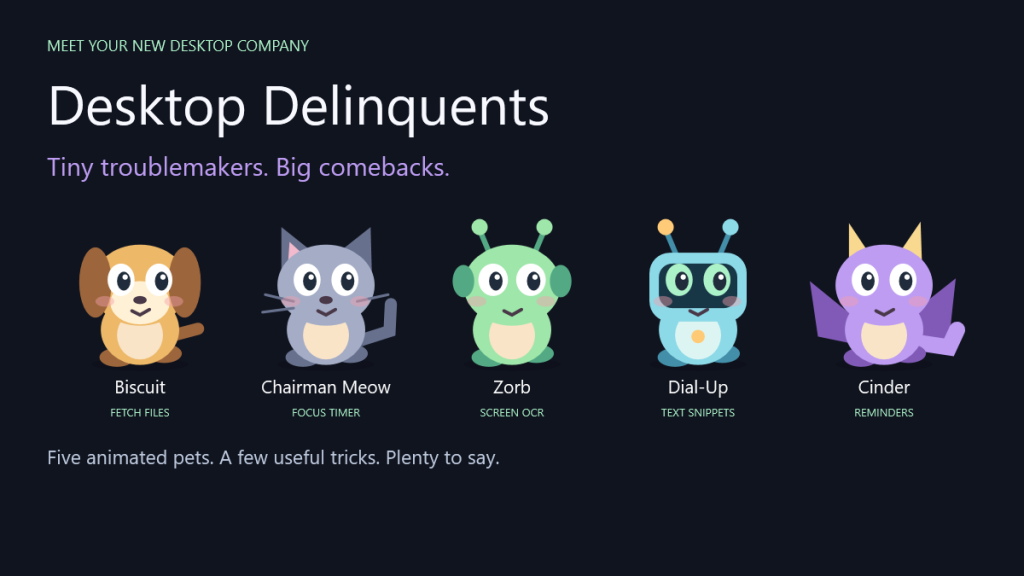
Meet the gang. Promotional composition using the application’s actual pet artwork.
A little desktop nostalgia, with better things to do
If you remember recording mixtapes, losing your internet connection when someone picked up the phone, or installing software simply because it made your computer more entertaining, you will recognise the spirit of Desktop Delinquents.
The pets live in transparent windows over your desktop and open applications. They can wander along the bottom of your work area, just above the taskbar. An optional, experimental setting also lets them use File Explorer window edges as ledges.
Pick them up and move them around. Double-click one for its individual animation. Leave them alone and they will get on with being mildly ridiculous. You choose which pets appear when the application launches, and you can add more during a session.
Meet the five troublemakers
Biscuit the dog: “Fetch!”
Biscuit loves everyone. Especially your socks. His enthusiasm also makes him a useful keeper of the files and folders you open repeatedly.
Drop a file or folder onto him, or add it through his tool window. Biscuit remembers a shortcut to the original location. Choose Fetch! to open it again. He can also keep a shortcut to an application executable.
Your files stay where they are. Removing an item from Biscuit’s list removes the shortcut, not the original file. If you move or delete the original, you will need to update the saved shortcut.
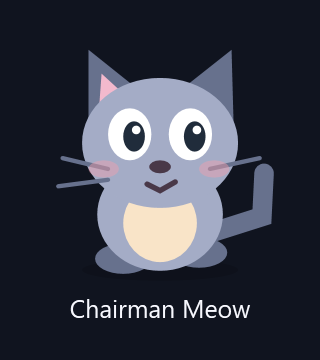
Chairman Meow the cat: “Do not disturb”
Chairman Meow was not there, did not do it, and would appreciate fewer questions. His contribution is a focus timer that asks the entire gang to settle down.
Start a 15-, 25- or 45-minute session, or choose your own duration from 1 to 240 minutes. Roaming, conversations, tricks and pet sounds stop while the cat sleeps. When the session ends, the application lets you know and the gang can resume its usual behaviour.
The timer controls the pets; it does not block websites or silence other Windows applications. Dragon reminders continue to work, and your manual hide setting remains respected.
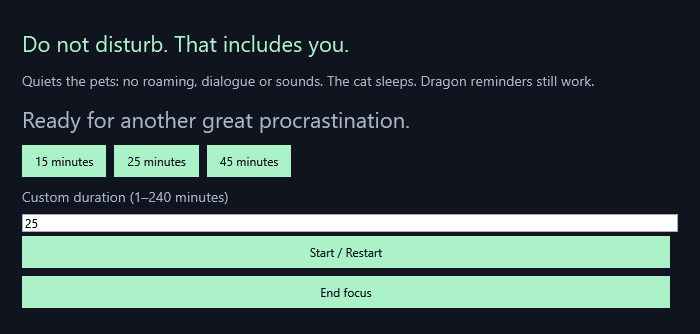
The cat’s focus controls. Rendered from the current English interface.
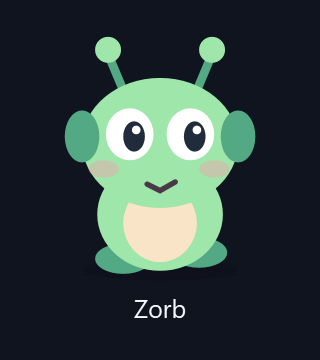
Zorb the alien: “What does this say?”
Zorb came looking for intelligent life. For now, he is helping with the text trapped inside pictures.
Choose a display and an OCR language, click Scan area, then drag a rectangle around the text you want to read. Zorb uses the Windows text-recognition engine to turn that image region into editable text. Review the result and copy it when you are happy with it. Press Esc to cancel the selection.
This can be useful for a screenshot, an image, or a scanned document displayed on screen. English and Greek are supported when the corresponding Windows OCR language pack is installed. Recognition runs locally, and accuracy depends on the size and clarity of the original text.
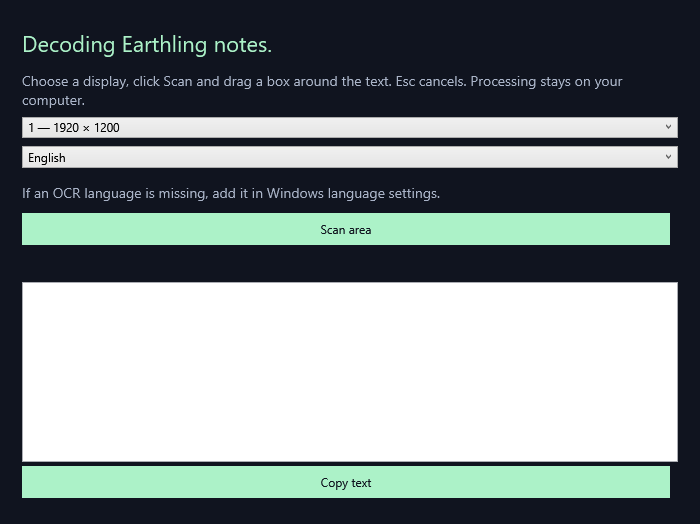
Select the area yourself, then check and copy the recognised text.
Dial-Up the robot: “Saved it”
Dial-Up thinks in instalments and occasionally freezes with style. Fortunately, his notes are more dependable than his dance moves.
His snippet shelf keeps text you deliberately save: a frequently used reply, a small checklist, a useful phrase or a note you want to find again. Add a title, edit an entry, mark favourites and search by title or content. A copy button puts the selected text on your clipboard.
This is a manually maintained collection. Dial-Up does not watch your clipboard or automatically record everything you copy.
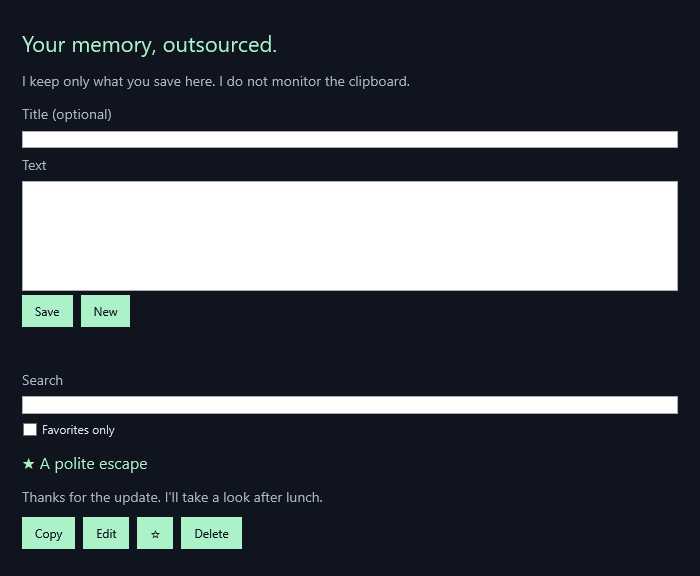
Save the words you actually want to keep. The example shown uses fictional sample text.
Cinder the dragon: “Reminders”
Cinder once made toast. The neighbourhood still remembers. Give him something less combustible to look after: your next reminder.
Write a short note and choose 5, 20 or 60 minutes, or set a specific date and time. When it is due, Cinder uses a Windows notification to remind you. Open the list to snooze it for ten minutes or mark it done by removing it.
The application must be running to deliver a reminder. If it was closed when the reminder became due, the pending reminder is picked up on the next launch. Entries stay in the list until you remove them, even if Windows notifications are disabled.
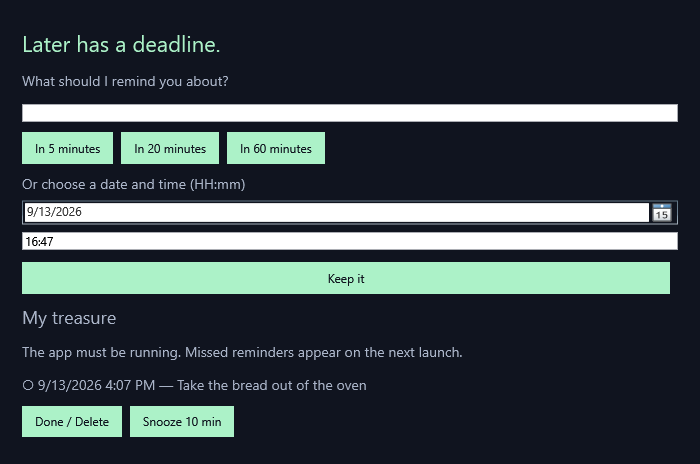
Cinder’s reminder list, shown with fictional sample data.
One pet starts it. Everyone else makes it worse.
At intervals, one pet opens a conversation and the others reply. Think of it as a tiny chorus with very little supervision.
“Who wants to grow up?”
“The avocados!”
“Why does it smell burnt?”
“The dragon made toast!”
Every speaker has a separate bubble. The opening line sits closer to the pets, with answers on higher levels. When a crowded screen cannot fit everyone, replies appear in groups instead of covering each other.
The humour draws on everyday absurdity, pets, nostalgia and grown-up sarcasm. Some dialogue packs contain adult language; cute artwork does not make every line suitable for children. You can select packs, disable individual lines, and write your own question-and-answer exchanges in the local editor.
Dialogue packs can also be exported and imported as files. Sharing is up to you: the application does not upload your dialogue library to a community service.
You decide how much company you want
- Choose your starting pets. Keep your favourites, invite the whole gang, or start with no pets at all.
- Keep tools within reach. Hover over a pet to reveal its utility button. The tools are also available from the tray menu, even without active pets.
- Ask for another line. The default dialogue shortcut is Ctrl + Alt + D, and you can change it in settings.
- Hide the gang quickly. Ctrl + Alt + P toggles manual hiding and resuming.
- Choose optional sound. Small synthesised vocal-style noises accompany the action when sound is enabled.
- Let them perform. Individual double-click tricks and occasional ensemble scenes give the pets more to do than walk.
- Use English or Greek. A new profile starts with an English interface. The application remembers your choice, and dialogue language has a separate setting.
Automatic fullscreen quiet mode can hide the pets and stop their current performance when a foreground application is detected as fullscreen. They return after you leave fullscreen. Compatibility varies between applications; manual hiding remains available.
Designed to work locally
The current pet features and tools work offline once their required Windows components are available. There is no application account to create and no cloud connection required for the pets to talk, for the timer to run, or for your saved snippets to remain available.
Settings, dialogue edits, shortcuts, snippets and reminders are stored on your computer. OCR processes the region you select locally and cleans up its temporary files after processing. The application also keeps a small local diagnostic log for troubleshooting; exporting and sharing that log is a separate action.
Installing the application, receiving Store updates or adding a missing Windows OCR language pack may require internet access.
Getting started
Once the Microsoft Store release is available:
- Install Desktop Delinquents and launch it from Windows.
- Look for your pets and the application icon in the notification area near the clock. The management window does not open automatically.
- Double-click the tray icon to open settings and choose your pets, language, dialogue options and sounds.
- Hover over a pet and click its small tool button. Double-clicking the pet itself triggers its animation, except during a focus session.
You can drag a pet to move it and right-click a pet to dismiss that instance. Closing the management window keeps the application running. To stop it completely, choose Quit from the tray menu.
Requirements and preview notes
- Platform: an x64 Windows PC. The current package targets Windows 10 22H2, build 19045, or later. Final compatibility testing is still in progress.
- Runtime: the MSIX package includes .NET; a separate .NET installation is not required for that package.
- OCR: the current preview uses Windows PowerShell and the installed Windows OCR language pack for English or Greek.
- Input: pet dragging and region selection are designed around mouse interaction.
The current build is a Store candidate, not a claim of completed Microsoft certification. Testing of packaged installation and updates, different monitor arrangements and DPI settings is still ongoing. Explorer-edge walking is experimental.
Frequently asked questions
Is Desktop Delinquents free?
The planned base release is free. Paid cosmetic packs are a possible future addition; they are not part of the current preview.
Do I have to keep all five pets on screen?
No. Choose your startup selection and add pets during a session. You can also use the tools from the tray with no active pets.
Will a reminder work after I close the settings window?
Yes, if the application is still running in the tray. Choosing Quit stops it. Overdue reminders are checked when the application is launched again.
Does the cat mute my entire computer?
No. The focus timer quiets the pets. It does not change system-wide notification or audio settings.
Can I add my own jokes?
Yes. The local dialogue editor lets you create and edit exchanges, enable or disable lines, and import or export dialogue packs.
Will the pets use absolutely no CPU?
No. Animation takes processing time. The application reuses artwork and slows its scheduler when pets are hidden, absent or in focus mode. Actual resource use depends on your computer and what the pets are doing.
Your desktop could use a little personality
Desktop Delinquents brings back the pleasure of software that makes a computer feel like your computer. A dog that fetches. A cat that insists on quiet. An alien that reads. A robot that remembers. A dragon that knows exactly when “later” has arrived.
The Microsoft Store release is in preparation. This page will be updated with a download button when the release is available.